
Troubleshooting guidance and refund policies reviewed: November 26, 2026
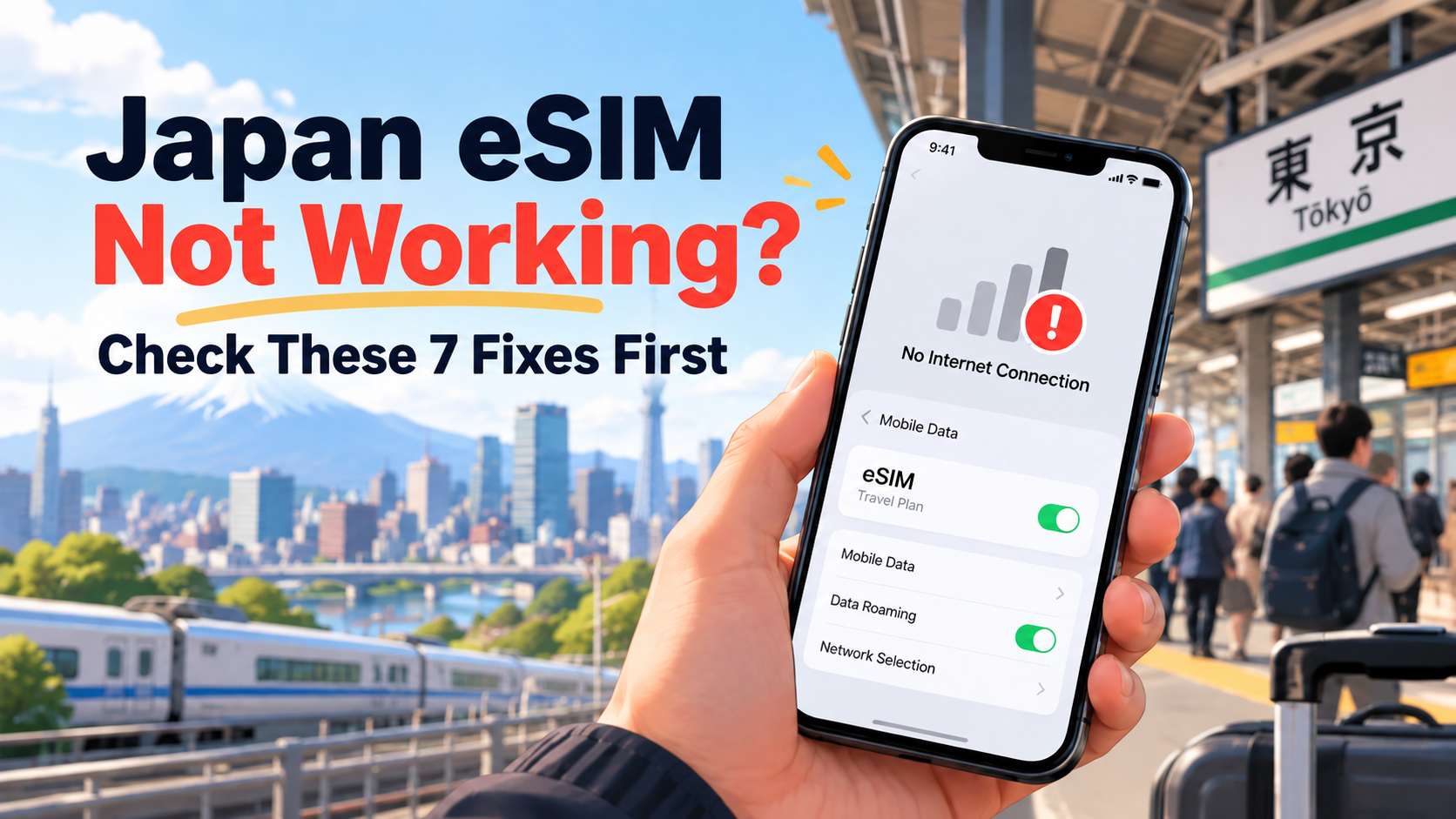
Quick Answer: Japan eSIM Not Working?
If your eSIM is installed but mobile data won’t connect, check that it’s selected for mobile data. Then check your plan’s roaming and APN instructions. If you use Airalo, open the instructions for your purchased eSIM in the Airalo app. Keep the eSIM installed while you troubleshoot.
Use the seven checks below to narrow down the problem.
Using a specific eSIM? Jump to: Airalo fixes · Ubigi fixes · JJesim fixes · Saily fixes
Do not delete your eSIM yet. Turning off a line is different from deleting its profile. Your activation code may not be reusable. Apple advises against erasing an eSIM for troubleshooting unless your provider directs you to do so. Accidental deletion may affect refund eligibility. Ask support first.
This guide is for visitors using an eSIM from Ubigi, Airalo, Saily, or another travel provider on an iPhone or Android device. Menu names and options vary by phone model, software version, and eSIM plan.
Find Your eSIM Problem
Start with the symptom that best matches your situation. These checks can help you find the relevant step below without changing settings unnecessarily.
| Symptom | Check | Next step |
|---|---|---|
| No signal / SOS | Enabled line, active plan, coverage | 1, 6 |
| Signal but no internet | Data SIM, roaming, APN | 2, 3, 5 |
| Airalo / Ubigi issues | Specific package instructions | Airalo / Ubigi |
| Cannot install | Compatibility, carrier lock, Wi-Fi, error | 1, 7 |
| Slow or stopped suddenly | Data balance, validity, coverage, speed limits | 6 |
| Already deleted | Ask support for recovery instructions | 7 |
Before you spend more: Do not delete your eSIM or buy a replacement until you have checked your provider’s guidance or contacted support.
Japan eSIM Not Working? 7 Checks to Try First
- Confirm that the travel eSIM is installed and enabled.
- Choose the travel eSIM for mobile data.
- Check your provider’s data-roaming instructions and protect your home SIM from roaming charges.
- Refresh the connection using airplane mode, then restart if necessary.
- Check the APN against your provider’s instructions.
- Check plan status, coverage, network selection, and (where supported) 4G/LTE.
- Contact your provider before deleting the eSIM or purchasing another plan.
Important: Do not delete the eSIM profile or reset all network settings as a routine first step. Reinstallation may require assistance, while a network reset can remove stored settings.
Device Settings at a Glance
| Device | Enable eSIM / select data | Roaming / APN |
|---|---|---|
| iPhone | Settings → Cellular (Mobile Data) → travel line → Turn On This Line; Cellular Data → travel line | Travel line → Data Roaming; Cellular Data Network if available |
| Google Pixel | Settings → Network & internet → SIMs → travel SIM → Use SIM; select it for mobile data | SIM settings → Roaming; Access Point Names if available |
| Samsung Galaxy | Settings → Connections → SIM manager → enable travel eSIM and select Mobile data | Connections → Mobile networks → Data roaming / Access Point Names |
Menu names vary by device, OS and carrier. See Apple Dual SIM, Pixel mobile network settings and Samsung network settings.
1. Confirm that your travel eSIM is installed and turned on
On iPhone, go to Settings → Cellular / Mobile Data, select your travel eSIM, and check that the line is enabled. On Android, open Settings → Network & internet → SIMs or Connections → SIM manager and check that your travel eSIM is enabled.
If the eSIM does not appear, return to your provider’s installation instructions. Do not assume you can reuse the QR code. Before attempting installation, see our eSIM compatibility guide.
2. Choose the correct SIM for mobile data
If you have both a regular SIM and a travel eSIM, your phone may still use the regular SIM for data. On iPhone, open Settings → Cellular → Cellular Data and select your travel eSIM. On Android, select the travel eSIM as your preferred data SIM in SIM settings.
On iPhone, turn off Allow Cellular Data Switching if you want data restricted to your travel line. On Android, disable automatic data switching or backup data if your model offers these controls. Once configured, turn off Wi-Fi briefly and load a website to test cellular data.
Avoid unexpected charges: Check whether your home line could incur international roaming fees. Keep data roaming off on your home SIM unless you intend to use it. Calls and SMS may still incur charges depending on your carrier. If you do not need the home line, consider turning it off, not deleting it; you may then miss calls or verification texts. If roaming controls are shared, follow device and provider instructions before enabling roaming.
3. Check data roaming—but only as your eSIM provider instructs
Some travel eSIMs need data roaming enabled on the travel eSIM to connect through a partner network. Follow the instructions for your specific product rather than assuming roaming must always be on or off.
On iPhone, select the travel eSIM under Settings → Cellular and check its data roaming setting. On Android, the roaming control may affect multiple active SIMs, depending on device and software. Airalo’s Android instructions advise turning off the primary line to avoid roaming charges while activating travel-eSIM roaming. If you cannot manage each SIM’s roaming independently, check the manufacturer’s guidance before making changes.
4. Refresh the network connection
- Turn on airplane mode.
- Wait a few seconds.
- Turn airplane mode off.
- Give the phone time to reconnect, then test data.
- If there is still no connection, restart the phone.
Ubigi’s connection guide recommends airplane mode and restarting the device. A normal restart does not remove an installed eSIM.
5. Check the APN (Access Point Name)
An APN helps your phone establish a mobile-data connection. Some eSIMs set it automatically; others need a manual value. Only enter the APN stated by your provider for your actual eSIM.
| Provider | APN when instructed | Condition |
|---|---|---|
| Ubigi | mbb | Manual setup only. |
| Airalo | Plan-specific / globalapn | Public Airalo: package instructions; New Airalo: globalapn only if automatic setup fails. |
| Saily | wbdata / truphone.com | Webbing / 1GLOBAL respectively; identify your profile first. |
| JJesim | vmobile.jp | Previously documented; confirm current instructions before editing. |
Do not change a working APN. If you cannot identify the profile, ask support.
Ubigi APN: mbb
Ubigi’s official APN FAQ identifies mbb as its APN. If manual setup is needed:
- Android: Open the travel eSIM’s mobile network / access point settings, enter
mbbin the APN field, save, and select the new APN if required. - iPhone: Where editable APN fields are available, select the Ubigi line and follow Ubigi’s instruction to use
mbbin its specified APN fields. The ability to edit these fields varies.
Do not apply mbb to an Airalo, Saily, or other eSIM simply because it appears in this article.
Airalo APN
Open the Airalo troubleshooting guide and find the connection instructions for your purchased eSIM in the Airalo app. Some Airalo plans configure APN automatically; others need the plan-specific value. For New Airalo, which uses a reusable eSIM and packages, keep automatic APN. If it fails, Airalo specifies globalapn as the fallback. Do not apply it to older packages unless instructed.
Saily APN
Check the instructions in the Saily app and its official troubleshooting section. Saily’s installation guide distinguishes Webbing (wbdata) and 1GLOBAL (truphone.com). Confirm your profile before editing or ask support if unsure.
6. Check plan status, coverage, and network mode
Connect to Wi-Fi and open your provider’s account or app. Confirm that the eSIM plan is active, the valid period has not ended, and there is remaining data if the plan has a data limit. Also check whether your current location in Japan is covered.
Some eSIMs use particular partner networks. If automatic network selection fails, use manual selection only with a network supported by your provider. Ubigi provides partner-network instructions in its connection support guide.
If your phone is attempting 5G but cannot establish a stable connection, trying 4G/LTE can help in some situations, as described in Airalo’s troubleshooting instructions. It is not a guaranteed fix and the setting may be unavailable on some phones. Slow data may reflect a plan’s speed threshold rather than a connection fault; see our unlimited vs fixed-data eSIM guide.
7. Contact the provider before buying a replacement
If you still cannot connect, contact the support service for the eSIM you actually purchased. Share your phone model, plan name, approximate location, error message, whether the eSIM is visible in settings, and the steps you have tried. Do not post activation QR codes, passwords, or sensitive account details publicly.
- Ubigi: Official connection troubleshooting
- Airalo: Why is my eSIM not working?
- Saily: Official troubleshooting center
Troubleshooting by Provider
If the checks above didn’t help, use the instructions for your exact plan. Keep your current eSIM installed while you troubleshoot.
Airalo Not Working in Japan
- Select the Airalo eSIM for mobile data and follow its roaming instructions in the app. If automatic network selection fails, try a network listed in your package’s connection instructions.
- If the app lists an APN, enter it exactly as shown. See Airalo’s APN guide.
- If data works but feels slow, check your package’s fair-use limit. The Japan unlimited package reviewed lists 1 Mbps after 3 GB in a day.
- Still offline? Use Wi-Fi to reach Airalo’s 24/7 support via live chat or the app.
Ubigi Not Working in Japan
- Select Ubigi for mobile data and turn on Data Roaming for that line. If manual APN setup is needed, use
mbb. - If automatic selection fails, check your plan’s supported networks. The Japan unlimited plans reviewed list KDDI, NTT Docomo and SoftBank.
- With SmartStart, the plan starts when the eSIM connects in its coverage area. Check the Ubigi app for plan status and remaining data. Ubigi is data-only, so use internet-based apps for calls or messages.
- Slow data? The 15-day unlimited plan lists 2 Mbps after 30 GB at full speed. The 30-day unlimited plan lists 2 Mbps after 60 GB.
JJesim Not Working in Japan
- Select Journey Japan eSIM for mobile data and enable Data Roaming for that line only. The provider lists NTT Docomo and KDDI. If automatic selection fails, follow its troubleshooting guide to select a supported network.
- The previously reviewed manual setup lists
vmobile.jpwithJJESIMas both username and password; confirm these values with current provider instructions before editing. For Android’s additional fields and iPhone’s hotspot settings, follow the official JJesim troubleshooting guide. - Still offline? Use the website chat or contact form. JJesim offers support in English and Japanese.
Saily Not Working in Japan
- Select Saily for mobile data and enable roaming for the travel line as instructed; protect the home line.
- Check the active package, remaining data and validity in the app over Wi-Fi.
- If APN setup is needed, confirm the profile in step 5 and follow Saily troubleshooting.
- Contact support before deleting or reinstalling.
Can You Get a Refund If Your Japan eSIM Does Not Work?
Keep the profile installed and save your receipt, order ID, error message and troubleshooting history. Refunds or replacements depend on the cause, usage and applicable purchase terms. Ask support about recovery before buying again.
| Provider | Refund and recovery guidance |
|---|---|
| Ubigi | Refund guidance: unused plans or verified provider-related activation problems may qualify. Submit your receipt through its customer service form within 14 business days of purchase or the technical issue, as applicable. |
| Airalo | Terms: replacement or refund for qualifying failures attributable to Airalo. Eligible wrong purchases or changed plans may be refunded in Airmoney; check applicable terms and app or support. |
| Saily | Refund policy: if not installed or not activated, request a full refund within 30 days of purchase. Activated plans may qualify for review in limited cases, including Saily-related quality problems or almost entirely unused data. |
| JJesim | Terms: verified technical failures may be considered at the provider’s discretion. Accidental deletion, carrier locks, incompatible devices and user error are listed exclusions. |
If you already removed the profile, connect to Wi-Fi and ask whether it can be reinstalled or reissued. Do not assume a QR code can be reused.
Contact Your eSIM Provider First
Use reliable Wi-Fi; if you are at an airport, consult our Japan airport free Wi-Fi guide.
Still Not Working? Get a Backup Connection
If you need data urgently and have reliable Wi-Fi, a backup eSIM may be an option. Check that your phone is unlocked and supports eSIM, and confirm the new plan covers your location. Keep your original eSIM installed and check its support and refund terms before paying again.
Affiliate disclosure: We may earn a commission if you buy through the Ubigi or Saily buttons below.
If your phone can’t use another eSIM or you need to connect several devices, consider Pocket WiFi. Check pickup hours, stock, and hotel delivery lead times before ordering.
For more options, see Best eSIMs for Japan and Ubigi vs Airalo vs Saily.
Frequently asked questions
Why do I have signal bars but no internet?
A phone can register on a network yet have a mobile-data configuration problem. Check which SIM provides data, the APN, roaming instructions, and plan status.
Should I turn on roaming for my Japan travel eSIM?
Only as your provider instructs, and with particular care to prevent your home SIM from roaming unexpectedly.
Will restarting my phone delete the eSIM?
No. A normal restart differs from deleting the eSIM profile or resetting the device.
Can I scan the same activation QR code again?
Not necessarily. Reinstallation policies vary. Ask your provider before removing a profile.
What if the eSIM stopped working after several days?
Check plan validity, remaining data, coverage, and network status before changing device settings or buying another plan.
Can I get a refund if my Japan eSIM does not work?
Eligibility depends on provider, usage and cause. Keep the eSIM installed and contact support before buying another plan.
What should I do if I accidentally deleted my eSIM?
Connect to Wi-Fi and request recovery instructions. Reinstallation depends on the service and profile.
Why is my unlimited eSIM so slow?
Check your exact plan’s high-speed allowance or fair-use restrictions before changing device settings.
Final Recommendation
Start with reversible checks: select the correct data SIM, follow the provider’s roaming instructions, refresh the connection, and verify your APN and plan status. If these checks fail, ask the provider for help before deleting your eSIM or purchasing another plan.
Official sources and verification date
General sources originally reviewed October 21, 2026; provider-specific plan examples reviewed November 18, 2026. APN, device and refund guidance reviewed November 26, 2026 using available official pages and indexed listings. JJesim’s troubleshooting page could not be retrieved again; confirm its previously listed APN and network settings with support. Speed-limit examples were not independently rechecked today:
- Ubigi: connection troubleshooting
- Ubigi: APN settings (mbb)
- Airalo: Android eSIM setup
- Airalo: eSIM not working
- Saily: troubleshooting
- Apple: eSIM setup support
- Google Pixel: mobile network settings
- Apple: eSIM deletion
- Apple: Dual SIM
- Samsung: network settings
- Airalo: APN instructions
- Airalo: terms
- Ubigi: refunds
- Saily: installation by profile
- Saily: refunds
- JJesim: terms
This is general troubleshooting information, not a guarantee of service. Device menus, roaming behavior, coverage, and provider instructions can change. Always follow your provider’s current directions for your specific plan.
Affiliate disclosure: Some linked comparison articles may contain affiliate links. We may earn a commission from qualifying purchases at no additional cost to you. Our troubleshooting advice does not depend on purchasing another plan.